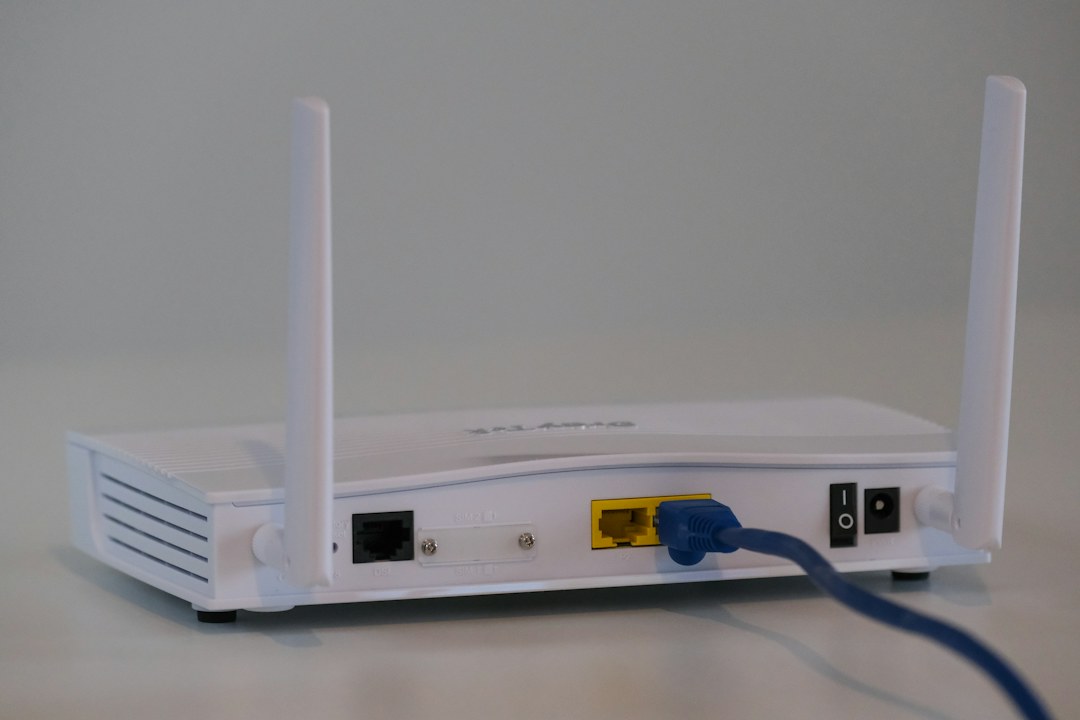
If Windows says you are connected but you cannot open websites or apps online, work through these steps in order.
1. Restart your router and PC
- Disconnect power from the router for about 30 seconds.
- Reconnect it and wait for the connection lights to stabilize.
- Restart your Windows PC.
- Test the connection again.
2. Check whether the problem affects other devices
Try another phone or computer on the same network. If every device is offline, the issue may be with the router or internet service rather than Windows.
3. Forget and reconnect to Wi-Fi
- Open Settings → Network & internet → Wi-Fi.
- Open Manage known networks.
- Select your network and choose Forget.
- Reconnect and enter the Wi-Fi password.
4. Restart the network adapter
- Open Device Manager.
- Expand Network adapters.
- Right-click the Wi-Fi adapter and choose Disable device.
- Wait a few seconds, then enable it again.
5. Reset TCP/IP and DNS
- Open Windows Terminal (Administrator).
- Run
ipconfig /flushdns. - Run
netsh winsock reset. - Restart Windows.
6. Use Network reset as a last step
- Open Settings → Network & internet → Advanced network settings → Network reset.
- Read the warning first.
- Select Reset now if you are comfortable reconnecting your network devices afterward.
Still no internet?
Check the adapter status, router status, and whether other devices have internet. This helps separate a Windows issue from a network or ISP problem.